Markdown in VS Code
Markdown 简单入门
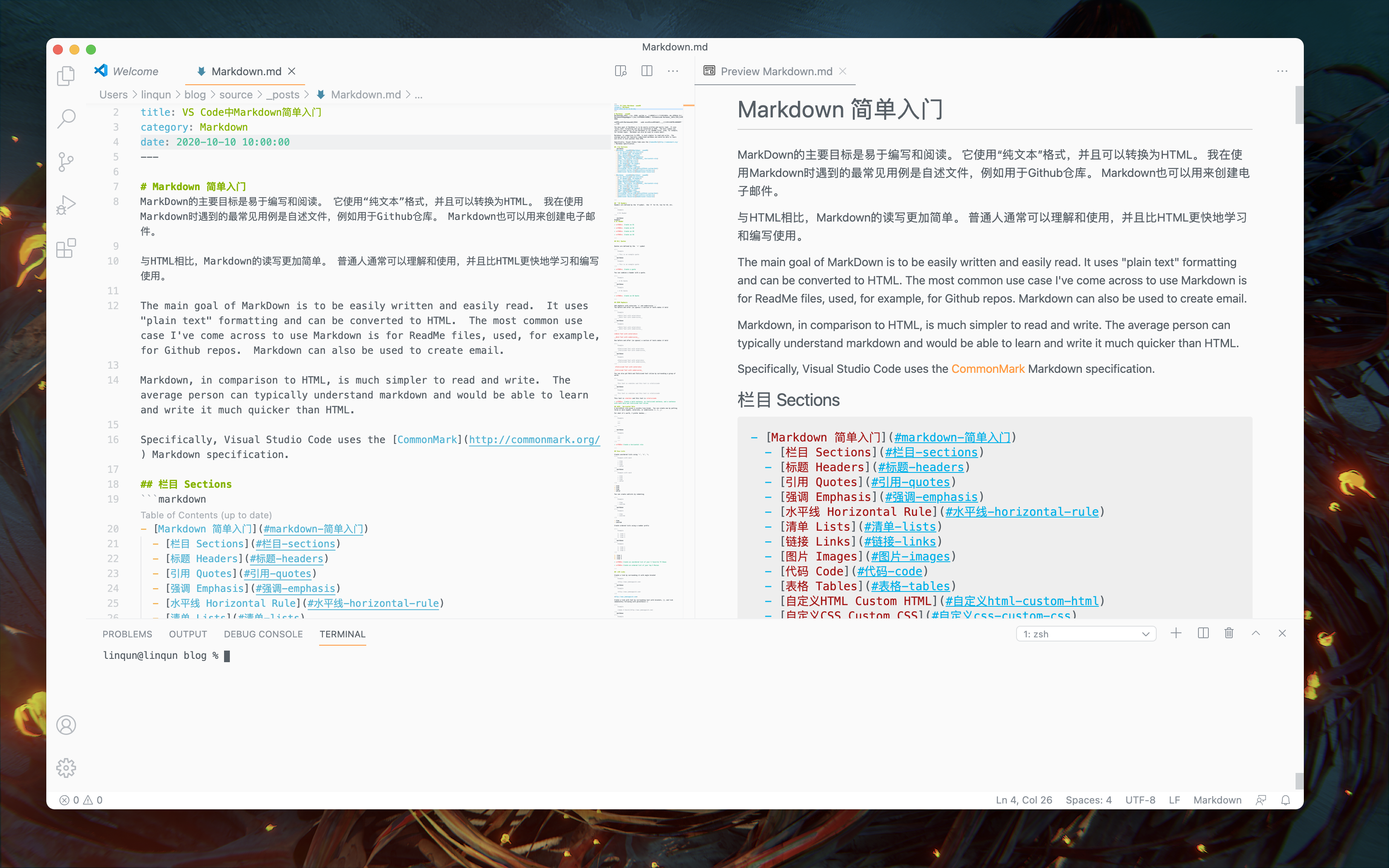
MarkDown的主要目标是易于编写和阅读。 它使用“纯文本”格式,并且可以转换为HTML。 我在使用Markdown时遇到的最常见用例是自述文件,例如用于Github仓库。 Markdown也可以用来创建电子邮件。
与HTML相比,Markdown的读写更加简单。 普通人通常可以理解和使用,并且比HTML更快地学习和编写使用。
The main goal of MarkDown is to be easily written and easily read. It uses “plain text” formatting and can be converted to HTML. The most common use case I’ve come across to use Markdown is for ReadMe files, used, for example, for Github repos. Markdown can also be used to create email.
Markdown, in comparison to HTML, is much simpler to read and write. The average person can typically understand markdown and would be able to learn and write it much quicker than HTML.
Specifically, Visual Studio Code uses the CommonMark Markdown specification.
栏目 Sections
1 | |
标题 Headers
Headers are defined by the ‘#’symbol. One ‘#’ for H1, two for H2, etc.
1 | |
TODO. Create an H1
TODO. Create an H2
TODO. Create an H3
TODO. Create an H4
引用 Quotes
Quotes are defined by the ‘>’ symbol
1 | |
TODO. Create a quote
You can combine a header with a quote.
1 | |
TODO. Create an H2 Quote
强调 Emphasis
Add emphasis with asterisks ‘*’ and underscores ‘_’
Two before and after (no spaces) a section of texts makes it bold
1 | |
Bold Text with asterisks
Bold Text with underscores
One before and after (no spaces) a section of texts makes it bold
1 | |
Italicized Text with asterisks
Italicized Text with underscores
You can also put Bold and Italicized text inline by surrounding a group of words.
1 | |
This text is bold and this text is italicized
TODO. Create a bold sentence, an italicized sentence, and a sentence with both bold and italicized text inline
水平线 Horizontal Rule
A horizontal rule gives a visible line break. You can create one by putting three or more hypens, asterisks, or underscores (-, *, _).
For what it’s worth, I prefer dashes…
1 | |
TODO Create a horizontal rule
清单 Lists
Create unordered lists using ‘-‘, ‘*’, ‘+,
1 | |
- item
- item
- item
- sdfsd
You can create sublists by indenting
1 | |
- item
- subitem
Create ordered lists using a number prefix
1 | |
- item 1
- item 2
- item 3
TODO Create an unordered list of your 5 favorite TV Shows
TODO Create an ordered list of your top 5 Movies
链接 Links
Create a link by surrounding it with angle bracket
1 | |
Create a link with text by surrounding text with brackets, [], and link immediately following with parenthesis ()
1 | |
TODO Create a link to your website, twitter, or github. with no text
TODO Create a link with text to your website, twitter, or github
What if you needed to reuse a link several times? Well, you could copy and paste that link each time. That means, if you need to update the link, you will have to do it each time its used. There’s a better way!
Create reference style links by defining your link with the a ‘key’ inside of brackets, colon, space, and the link
1 | |
Then use the reference style link by using your text inside of brackets followed by the link ‘key’ inside of bracket.
1 | |
TODO Create a reference link to your website and reference it three times
You can also link to other locations on your markdown page. Remember, your MarkDown will get converted to HTML, so you can, in theory, use a anchor tag to link to an element with a specific ID. You can find an example of this in the list of sections at the top of this document.
When we create a header tag for example, it implicitly creates an id property.
Ex ‘# Header’ becomes <h1 id="header">Header</h1>
Names will be converted to ids by replacing spaces with hyphens and uppercase letters with lowercase letters (think css naming convention).
Ex ‘Header Info’ becomes header-info
TODO Create a link to another part of your page.
图片 Images
Defining an image is similar to defining a link, except you prefix it with ‘!’
1 | |
Just like links, you can define images by reference in the same format.
Define the reference
1 | |
Use the reference
1 | |
TODO Create a reference link to your profile picture and then reference it.
代码 Code
You can do inline code with backticks (``)
TODO Display a line of text with inline code
You can do blocks of code by surroung it with 3 backticks (``` ```)
1 | |
1 | |
TODO Display a block of code from your favorite language
The above does not give language specific highlighting. You can specify the programming language immediately following the opening 3 backticks. You Should see a difference in highliting!
1 | |
1 | |
1 | |
TODO Display a block of code from your favorite language while specifying the language
表格 Tables
Tables are useful for displaying rows and columns of data. Column headers can be defined in between pipes (|). Headers are separated from table content with a row of dashes (-) (still separated by pipes), and there must be at least 3 dashes between each header. The row data follows beneath (still separated by pipes).
1 | |
| Header 1 | Header 2 | Header 3 |
|---|---|---|
| Row 1 Col 1 | Row 1 Col 2 | Row 1 Col 3 |
The column definitions and row definitions do not have to have the exact same width sizes, but it would be much more readable. Notice the output of the following two tables are the same, but the second (the raw markdown) is much more readable.
1 | |
| Header 1 | Header 2 |
|---|---|
| Loooooooooooooong item 1 | looooooooooong item 2 |
| Header 1 | Header 2 |
|---|---|
| Loooooooooooooong item 1 | looooooooooong item 2 |
TODO Create a table with three columns and two rows
You can also align (Center, left, right) the text in a column by using colons (:) in the line breaks between headers and rows. No colon means the default left alignment. Colons on each side signifies center alignment. And a trailing colon means right alignment.
TODO Create a table with three columns, one aligned left, one aligned center, and one aligned right
1 | |
| Header | Header 1 | Header 2 |
|---|---|---|
| Aligned Left | Aligned Center | Aligned Right |
自定义HTML Custom HTML
Since MarkDown gets automatically converted to HTML, you can add raw HTML directly to your MarkDown.
1 | |
Creates this
Sample HTML Div
TODO If you are comfortable with HTML, add some raw HTML.
自定义CSS Custom CSS
You can also add custom CSS to your MarkDown to add additional styling to your document. You can also include CSS by including a style tag.
1 | |
TODO If you are comfortable with CSS, give your page some style.
Additional Resources
本博客所有文章除特别声明外,均采用 CC BY-SA 4.0 协议 ,转载请注明出处!